
Topic 4: Misc. Questions
You have a Microsoft 36S tenant.
You create a named location named HighRiskCountries that contains a list of high-risk
countries.
You need to limit the amount of time a user can stay authenticated when connecting from a
high-risk country.
What should you configure in a conditional access policy? To answer, select the
appropriate options in the answer area.
NOTE: Each correct selection is worth one point.
Explanation
A Conditional Access policy is built from building blocks that follow an "if-then" logic: IF these conditions are met, THEN apply these controls.
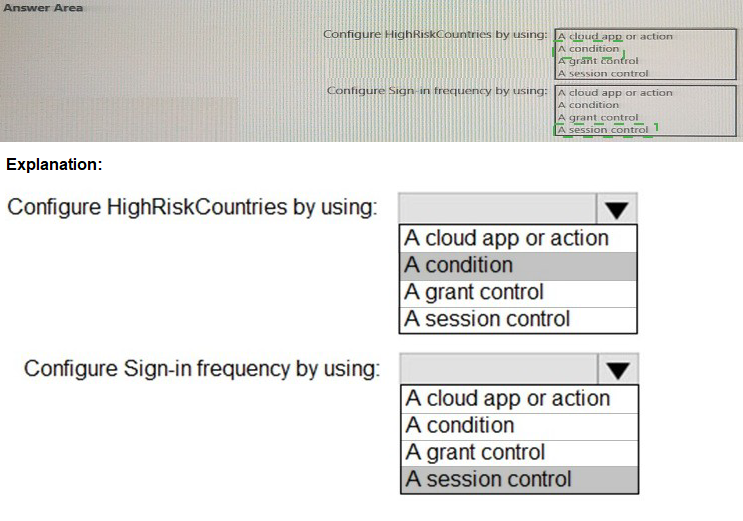
1.Configure HighRiskCountries by using: A condition
Explanation: The "HighRiskCountries" named location is used to define when the policy should apply. Conditions are the "IF" part of the policy. You are essentially saying, "IF the sign-in attempt is coming from a location in the 'HighRiskCountries' list..." Therefore, the named location must be configured as a Condition (specifically, under the "Locations" condition).
2.Configure Sign-in frequency by using: A session control
Explanation: Sign-in frequency is a feature that limits how long a user can use a session before being forced to re-authenticate. In Conditional Access, this is not a one-time grant of access; it is a control that governs the behavior of an ongoing session. Controls that dictate the experience during an active session, such as requiring re-authentication after a period of time or enforcing app-enforced restrictions, are categorized as Session controls.
Why the Other Options Are Incorrect
A cloud app or action: This is the target of the policy. You select which applications (e.g., Office 365, Salesforce) or user actions (like registering security information) the policy should apply to. It is not the mechanism for defining a risk location or a session duration.
A grant control:
This is a block-or-allow control that acts as a gatekeeper for initial access. Examples include "Block access," "Grant access" (but require MFA or a compliant device). Grant controls decide if you get in at all. Sign-in frequency does not block the initial grant of access; it controls how long that granted access remains valid before it must be re-evaluated, which is the definition of a session control.
Reference:
Microsoft Learn:
Conditional Access - Conditions
This document lists "Location" as a primary condition for a policy.
Microsoft Learn:
Conditional Access - Session controls
This document explicitly lists "Sign-in frequency" as a type of session control.
You have a Microsoft 365 E5 subscription that contains a Microsoft SharePoint Online site
named Site1.
You need to ensure that users can request access to Site. the solution must meet the
following requirements.
• Automatically approve requests from users based on their group membership.
• Automatically remove the access after 30 days
What should you do?
A. Create a Conditional Access policy.
B. Create an access package
C. Configure Role settings in Azure AD Privileged Identity Management
D. Create a Microsoft Defender for Cloud Apps access policy
Explanation:
An access package within Azure AD Entitlement Management is specifically designed for this exact scenario. It is a centralized tool for managing access to resources (like a SharePoint site) by bundling them into a single, requestable package with defined policies.
1.Here's how an access package meets both requirements:
Automatically approve requests from users based on their group membership: When creating the access package's request policy, you can specify "Who can request this access package?" You can target specific Azure AD groups (e.g., "All Employees" or "Contoso Sales"). For these users, you can configure the approval settings to be Auto-approved. This means any user from the specified group who requests access is granted it immediately without needing a human approver.
2.Automatically remove the access after 30 days:
In the same access package policy, you configure the "Expiration" settings. You can set access to expire after a specific number of days (in this case, 30 days). When the access expires, the user's permissions to the SharePoint site are automatically revoked, ensuring access is not retained indefinitely.
Why the Other Options Are Not Correct
A. Create a Conditional Access policy:
Conditional Access is a security tool that uses signals to make authentication and authorization decisions (e.g., block access, require MFA). It does not have the capability to create a request-and-approval workflow, manage group memberships for resource access, or automatically remove access to a SharePoint site after a set number of days.
C. Configure Role settings in Azure AD Privileged Identity Management (PIM):
PIM is used for managing Azure AD roles (like Global Admin) and Azure resource roles (like Owner of a subscription). It is designed for privileged, administrative roles, not for granting standard user access to an application like SharePoint Online. It operates on a different set of resources and is not the correct tool for granting access to a SharePoint site for end-users.
D. Create a Microsoft Defender for Cloud Apps access policy:
While Defender for Cloud Apps can create session policies to control how users access apps (e.g., block download, require monitoring), it is not designed for the lifecycle management of access itself. It cannot create a self-service request portal, implement approval workflows, or automatically provision and deprovision access based on a 30-day timeline. Its focus is on real-time security monitoring and control, not access governance.
Reference:
Microsoft Learn: What is an access package?
This document outlines the core concepts of access packages, including how they manage resource access with policies for requests, approval, and expiration.
You have a Microsoft Entra tenant that uses Microsoft Entra ID Premium licenses.
You plan to configure a terms of use (ToU) for the tenant.
You need to upload the ToU document.
Which format should you use for the document?
A. HTML
B. RTF
C. PDF
D. DOCX
Explanation:
Microsoft Entra Terms of Use requires the document to be uploaded in PDF format. This is a fixed technical requirement of the feature. Using a PDF ensures that the document's formatting, images, and text remain consistent and unalterable for all users who are required to accept it. This provides a standardized and secure way to present legal or compliance documents.
Why the Other Options Are Not Correct
A. HTML:
While HTML is a versatile web format, it is not a supported upload format for the Terms of Use feature. An HTML document could be more easily modified or could render differently across different browsers, leading to potential compliance or consistency issues.
B. RTF (Rich Text Format):
RTF is a legacy document format primarily for interchange between word processing applications. It is not supported for upload to the Terms of Use feature due to its limited formatting capabilities and lack of universal consistency.
D. DOCX (Microsoft Word Document):
DOCX is the default format for Microsoft Word. Although a very common format for creating documents, it is not accepted by the Terms of Use service. The requirement for a non-editable, consistently viewable format makes PDF the mandatory choice.
Reference
Microsoft Learn: Azure Active Directory Terms of Use feature
The official documentation explicitly states the file format requirement: "PDF with a maximum size of 4 MB."
You have a Microsoft 365 tenant.
All users have mobile phones and laptops.
The users frequently work from remote locations that do not have Wi-Fi access or mobile
phone connectivity.
While working from the remote locations, the users connect their laptop to a wired network
that has internet
access.
You plan to implement multi-factor authentication (MFA).
Which MFA authentication method can the users use from the remote location?
A. a notification through the Microsoft Authenticator app
B. security questions
C. voice
D. an app password
Explanation:
This question from the SC-300 exam focuses on selecting an appropriate multi-factor authentication (MFA) method for users in a Microsoft 365 tenant who work from remote locations without Wi-Fi or mobile phone connectivity but have internet access via a wired network on their laptops. Let’s analyze each option in the context of this scenario:
A. A notification through the Microsoft Authenticator app:
This method typically requires the user to receive a push notification on their mobile phone and approve it. Since the users are in remote locations without mobile phone connectivity, they cannot receive notifications, making this option unsuitable.
B. Security questions:
Microsoft Entra ID (formerly Azure Active Directory) does not support security questions as a standalone MFA method. While security questions can be used for self-service password reset (SSPR), they are not an approved MFA authentication method in Microsoft 365, so this option is incorrect.
C. Voice:
This method involves receiving a phone call or sending a verification code via voice to a registered phone number. Since the users lack mobile phone connectivity in the remote locations, they cannot receive voice calls, making this option unfeasible.
D. An app password:
An app password is a unique, one-time-use password generated in Microsoft Entra ID for applications or devices that do not support modern authentication protocols (e.g., legacy email clients like Outlook 2010). Users can enter an app password as a second factor during authentication for certain scenarios. Since the laptops are connected to the internet via a wired network, users can use an app password to authenticate without requiring mobile connectivity or Wi-Fi. This makes it the most suitable MFA method for this scenario.
Additional Context:
In Microsoft Entra ID, app passwords are often used as a workaround for legacy applications or scenarios where modern MFA methods (like push notifications or SMS) are not feasible. While app passwords are not the most secure MFA option (as they are static and bypass interactive second-factor prompts), they are still supported in Microsoft 365 for specific use cases.
The scenario emphasizes that users are on laptops with internet access, which allows them to access the Microsoft 365 portal or applications where an app password can be used.
Modern MFA methods like Microsoft Authenticator notifications, SMS, or voice calls rely on mobile connectivity, which is unavailable in this case, making app passwords the only viable option.
References:
Microsoft Documentation: Manage app passwords for multi-factor authentication
Microsoft Learn: Plan for multi-factor authentication for Microsoft 365
Microsoft Documentation: Authentication methods in Microsoft Entra ID
Note: This question is part of a series of questions that present the same scenario. Each
question in the series contains a unique solution that might meet the stated goals. Some
question sets might have more than one correct solution, while others might not have a
correct solution.
After you answer a question in this section, you will NOT be able to return to it as a result,
these questions will not appear in the review screen.
You have an Amazon Web Services (AWS) account, a Google Workspace subscription,
and a GitHub account.
You deploy an Azure subscription and enable Microsoft 365 Defender.
You need to ensure that you can monitor OAuth authentication requests by using Microsoft
Defender for Cloud Apps.
Solution: From the Microsoft 365 Defender portal, you add the Amazon Web Services app
connector.
Does this meet the goal?
A. Yes
B. No
Explanation:
Microsoft Defender for Cloud Apps (formerly Microsoft Cloud App Security) uses app connectors to integrate directly with third-party cloud services such as AWS, Google Workspace, and GitHub.
By adding an AWS app connector from the Microsoft 365 Defender portal, Defender for Cloud Apps can monitor and analyze OAuth app consent and authentication requests occurring in the AWS environment.
This integration allows you to:
Detect risky OAuth applications.
Monitor authentication activities.
View alerts related to suspicious OAuth app permissions or tokens.
Therefore, connecting AWS through the app connector achieves the goal of monitoring OAuth authentication requests.
Why This Meets the Goal:
✅ AWS App Connector provides API-level visibility into sign-ins and OAuth app activity.
✅ Once connected, Defender for Cloud Apps continuously scans connected apps for OAuth permissions and authentication events.
✅ This is done directly from the Microsoft 365 Defender portal → Settings → Cloud Apps → App Connectors.
Reference:
Microsoft Learn – Connect AWS to Microsoft Defender for Cloud Apps
Microsoft Learn – Manage OAuth apps in Defender for Cloud Apps
Summary:
Adding the Amazon Web Services app connector in Microsoft 365 Defender enables monitoring of OAuth authentication requests in AWS through Defender for Cloud Apps, so this solution meets the goal → ✅ Answer: A (Yes)
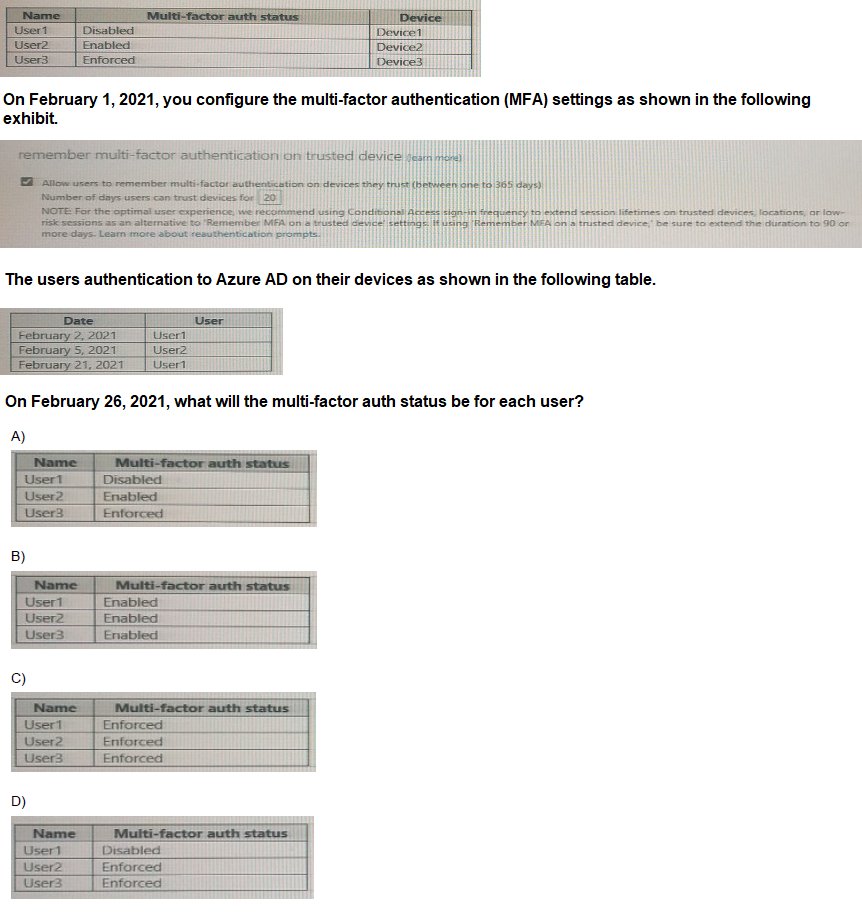
You create the Azure Active Directory (Azure AD) users shown in the following table.
A. Option A
B. Option B
C. Option C
D. Option D
Explanation:
This question tests your understanding of the difference between a user's MFA state and the "remember MFA" session feature.
1.The "MFA Status" Column is Permanent:
The Disabled, Enabled, and Enforced status for each user is a permanent configuration setting in their Azure AD profile. It does not change automatically based on their sign-in activity or the "remember MFA" setting.
Disabled:
The user is not enrolled in MFA.
Enabled:
The user is enrolled in MFA but can still log in using only a password until the first time they complete the registration prompt. After that, they will be prompted for MFA based on policies.
Enforced:
The user has been through the MFA registration process and must use a second authentication factor whenever required by policy.
2The "Remember MFA" Setting is Temporary:
The "remember multi-factor authentication on trusted devices" feature (now called Number of days a user can remain signed in) creates a persistent browser session. When a user successfully completes MFA and checks "Don't ask again for X days," they won't be prompted for MFA again on that same device and browser for the specified number of days (20 days in this case). This affects the MFA prompt, not the user's underlying MFA status.
Analysis by User:
User1 (MFA Status: Disabled):
This user is not enrolled in MFA at all. The "remember MFA" setting is irrelevant because they are never prompted for a second factor. Their status will remain Disabled regardless of their sign-in activity on February 2nd and 21st.
User2 (MFA Status: Enabled):
This user is enrolled in MFA. On February 5th, they signed in. Assuming they successfully completed MFA and checked "Don't ask again for 20 days," they would not be prompted again until around February 25th. However, this session state does not change their permanent MFA status from Enabled to anything else. Their status remains Enabled.
User3 (MFA Status: Enforced):
This user's status is Enforced. This is a permanent setting and is not affected by any sign-in events or the "remember MFA" feature. Their status remains Enforced.
Why the Other Options Are Incorrect
Option B & C:
These are incorrect because they show User1's status changing from Disabled to Enabled or Enforced. A user's MFA status cannot be changed automatically by signing in; it must be changed by an administrator.
Option D:
This is incorrect because it shows User2's status changing from Enabled to Enforced. Again, this status change is an administrative action, not an automatic result of the user signing in and using the "remember MFA" feature.
Reference
Microsoft Learn: Configure authentication session management
This document explains the "Number of days users can remain signed in" feature (formerly "remember MFA"), clarifying that it controls the session persistence, not the user's account state.
Microsoft Learn: Plan an Azure Multi-Factor Authentication deployment
This document explains the different user states (Disabled, Enabled, Enforced).
You have an Azure subscription that contains an Azure Automation account named Automation1 and an Azure key vault named Vault1. Vault1 contains a secret named Secret
1.
You enable a system-assigned managed identity for Automation1.
You need to ensure that Automation! can read the contents of Secret1. The solution must
meet the following requirements:
A. From Vault1, configure the Access control (1AM) settings.
B. From Automation1, configure the Identity settings.
C. From Secret1, configure the Access control (1AM) settings
D. From Automation1, configure the Run as accounts settings.
Explanation:
This SC-300 exam question focuses on securing access to an Azure Key Vault secret using a system-assigned managed identity for an Azure Automation account, while adhering to the principle of least privilege and restricting access to only the specified secret (Secret1). Let’s analyze the solution step by step:
System-Assigned Managed Identity:
Enabling a system-assigned managed identity for Automation1 allows it to authenticate to Azure services (like Key Vault) without requiring credentials in the code. This identity is tied to the lifecycle of Automation1 and provides a secure way to manage access.
Requirements:
Automation1 must read the contents of Secret1.
Access must be restricted to Secret1 only, preventing access to other secrets in Vault1.
The principle of least privilege must be followed, meaning Automation1 should have the minimum permissions necessary.
Options Analysis:
A. From Vault1, configure the Access control (IAM) settings:
Azure Key Vault uses Role-Based Access Control (RBAC) via IAM settings at the vault level to assign permissions to managed identities or users. You can assign the Key Vault Secrets User role (or a custom role) to the system-assigned managed identity of Automation1. This role allows read access to secrets but not modification or other actions. To restrict access to Secret1 only, you would need to use a Key Vault access policy (configured under the Access policies section of Vault1) instead of IAM alone, as IAM roles apply at the vault level. However, the most precise way to meet the "prevent access to other secrets" requirement is to create a custom role with permissions limited to get and list actions on Secret1, assigned via IAM. This aligns with the principle of least privilege and is the correct approach.
B. From Automation1, configure the Identity settings:
Configuring the Identity settings enables or manages the managed identity but does not grant permissions to access Key Vault. Permissions must be configured on the Key Vault side, making this option insufficient on its own.
C. From Secret1, configure the Access control (IAM) settings:
There is no direct IAM configuration at the individual secret level in Azure Key Vault. Access policies or RBAC roles are applied at the vault or resource level, not per secret. This option is incorrect.
D. From Automation1, configure the Run as accounts settings:
Run as accounts in Azure Automation are used to authenticate to Azure resources using a service principal or managed identity, but configuring them does not directly grant permissions to Key Vault. Permissions still need to be set on Vault1, making this option incomplete.
Correct Approach:
Go to Vault1 in the Azure portal.
Under Access control (IAM), add a role assignment for the system-assigned managed identity of Automation1.
Use the Key Vault Secrets User role as a starting point (which allows get and list permissions for secrets).
To strictly limit access to Secret1, create a custom role with permissions limited to Microsoft.KeyVault/vaults/secrets/get and Microsoft.KeyVault/vaults/secrets/list for Secret1 only (using a condition or scope if supported, though current Azure RBAC does not allow secret-level granularity directly; access policies are typically used for this). However, the most practical solution is to rely on access policies under Vault1’s Access policies section, where you can specify the managed identity and limit permissions to Secret1.
This ensures Automation1 can read Secret1 but cannot access other secrets, adhering to the principle of least privilege.
References:
Microsoft Documentation: Assign a Key Vault access policy
Microsoft Documentation: Use managed identities in Azure Automation
Microsoft Learn: Secure access to a key vault
You have an Azure AD tenant that contains a user named User1 User1 needs to manage license assignments and reset user passwords. Which role should you assign to User1?
A. License administrator
B. Helpdesk administrator
C. Billing administrator
D. User administrator
Explanation:
The User Administrator role is the only role that combines both required permissions:
1.Manage license assignments:
The User Administrator role has the permission to assign, remove, and update license assignments for all users and groups (except administrators with more privileged roles).
2.Reset user passwords:
The User Administrator role has the permission to reset passwords for all non-administrator users and for other User Administrators.
Assigning this single role to User1 fulfills both requirements efficiently.
Why the Other Options Are Not Correct
A. License administrator:
This role can manage license assignments for all users and groups. However, it cannot reset user passwords. It is a specialized role focused solely on product licensing and lacks the user management permissions needed for the second requirement.
B. Helpdesk administrator:
This role can reset passwords, but only for non-administrator users and for other Helpdesk Administrators. Crucially, it cannot manage license assignments. This role is designed for basic user support tasks and does not include licensing permissions.
C. Billing administrator:
This role is focused on financial and purchasing operations, such as making purchases, managing subscriptions, managing support tickets, and monitoring service health. It cannot manage license assignments in the detailed way the question requires, and it cannot reset user passwords.
Reference:
Microsoft Learn: Azure AD built-in roles - User Administrator
The official documentation explicitly lists the permissions for this role, which include:
"Can manage all aspects of users and groups... Can reset passwords for non-administrators and other user administrators."
"Can manage user and group properties and license assignments."
You have a Microsoft 365 E5 subscription that contains a Microsoft SharePoint Online site named Site1. You need to be notified if a user downloads more than 50 files in one minute from Site1. Which type of policy should you create in the Microsoft Defender for Cloud Apps portal?
A. session policy
B. anomaly detection policy
C. activity policy
D. file policy
Explanation:
An activity policy in Microsoft Defender for Cloud Apps is specifically designed to monitor user and account activities across your cloud environment. You can create custom policies that trigger alerts based on specific activity filters, such as:
The type of activity: In this case, "Download file" from SharePoint Online.
The activity amount: You can set a threshold, like "more than 50" activities.
The time frame: You can define the aggregation window, such as "in 1 minute."
By creating a custom activity policy, you can precisely meet the requirement: be notified when any user performs the "Download file" activity on Site1 more than 50 times within a one-minute window.
Why the Other Options Are Not Correct
A. Session policy:
A session policy is used to control an ongoing user session in real-time. It allows you to monitor sessions and enforce restrictions, such as blocking downloads, requiring file encryption, or limiting activities as they happen. It is a control and monitoring policy, not a policy designed for retrospective alerting on an aggregated count of activities.
B. Anomaly detection policy:
This type of policy uses machine learning to identify unusual behavior that differs from a user's or a peer group's established baseline (e.g., "impossible travel," "activity from a suspicious IP address"). While it can detect high-volume downloads if it's deemed anomalous, you cannot explicitly configure its trigger to be "50 files in one minute." It is based on behavioral analytics, not a manually set, fixed threshold.
D. File policy:
A file policy is used to scan and take action on the content of files stored in your cloud apps. It can detect files containing sensitive information (like credit card numbers), malware, or shared with people outside the organization. It is concerned with the content and sharing state of files, not with the volume of download activities performed by a user.
Reference:
Microsoft Learn: Create an activity policy
This document explains how to use activity policies to monitor specific user actions and set custom alerts based on filters and thresholds.
Your network contains an Active Directory forest named contoso.com that is linked to an
Azure Active Directory
(Azure AD) tenant named contoso.com by using Azure AD Connect.
You need to prevent the synchronization of users who have the extensionAttribute15
attribute set to
NoSync.
What should you do in Azure AD Connect?
A. Create an inbound synchronization rule for the Windows Azure Active Directory connector.
B. Configure a Full Import run profile.
C. Create an inbound synchronization rule for the Active Directory Domain Services connector.
D. Configure an Export run profile.
Explanation:
Azure AD Connect synchronization uses a rules-based engine to determine which objects and attributes flow from the on-premises AD (the source) to the metaverse (the central hub) and then to Azure AD (the target). To prevent an object from synchronizing, you must filter it out before it is projected into the metaverse.
1.nbound vs. Outbound Rules:
Inbound rules control the flow of objects and attributes from a connected data source (like on-premises AD) to the metaverse.
Outbound rules control the flow from the metaverse to a connected data source (like Azure AD).
2.Connector Context:
The Active Directory Domain Services (AD DS) connector represents your on-premises Active Directory forest (contoso.com).
The Windows Azure Active Directory connector represents the Azure AD tenant.
To prevent users with extensionAttribute15 set to NoSync from synchronizing, you must create a scoping filter on the inbound synchronization rule from the AD DS connector. This filter will ensure that any user meeting this condition is not brought into the metaverse and, consequently, is never exported to Azure AD.
Why the Other Options Are Not Correct
A. Create an inbound synchronization rule for the Windows Azure Active Directory connector:
Inbound rules for the Azure AD connector are used when bringing data from Azure AD into the metaverse (e.g., in a write-back scenario). You cannot filter on-premises AD objects using an inbound rule on the Azure AD connector. The source of the objects is the on-premises AD, so the filter must be applied there.
B. Configure a Full Import run profile:
A run profile defines the steps in a synchronization cycle (e.g., Full Import, Delta Synchronization, Export). Configuring a run profile initiates the process but does not itself create the filtering logic or rules needed to exclude objects based on an attribute. It is an operational task, not a configuration one.
D. Configure an Export run profile:
Similar to option B, this is an operational step that runs the export process. It does not contain the functionality to create filters based on attribute values. The decision to export an object is made during the synchronization phase based on the rules; the export step simply executes that decision.
Reference
Microsoft Learn: Azure AD Connect sync: Configure filtering
This document explains the concepts of scoping filters and synchronization rules. It states that you can "Configure filtering based on an attribute on the object (for example, you don't want to sync objects where the department attribute has a value)."
You have an Azure Active Directory (Azure AD) tenant that contains a user named User1. You need to ensure that User1 can create new catalogs and add resources to the catalogs they own. What should you do?
A. From the Roles and administrators blade, modify the Service support administrator role
B. From the identity Governance blade, modify the Entitlement management settings.
C. From the Identity Governance blade, modify the roles and administrators for the General catalog
D. From the Roles and administrators blade, modify the Groups administrator role.
Explanation:
In Azure AD Entitlement Management, the ability to create new catalogs is controlled by a specific setting within the Entitlement Management configuration, not by the standard Azure AD administrator roles.
Navigate to: Azure AD portal > Identity Governance > Entitlement management.
Locate the Setting: Go to the Settings for entitlement management.
Delegate Catalog Creation: There is a specific setting to "Add catalog creators". This is where you would add User1.
By adding User1 as a catalog creator, you grant them the precise permissions they need:
Create new catalogs.
Add resources to the catalogs they own. (They become the owner of any catalog they create and can manage its resources and access packages).
This is the most granular and appropriate way to delegate this specific administrative function within Identity Governance.
Why the Other Options Are Not Correct
A. From the Roles and administrators blade, modify the Service support administrator role:
The "Service Support Administrator" role is a high-privilege role used for opening support tickets with Microsoft and managing service health. It does not grant any specific permissions within the Identity Governance or Entitlement Management features.
C. From the Identity Governance blade, modify the roles and administrators for the General catalog:
This action would grant User1 permissions (like "Catalog owner") over the existing "General" catalog. However, the requirement is for User1 to be able to create new catalogs, which is a tenant-wide permission controlled by the "catalog creator" setting, not a permission on a specific existing catalog.
D. From the Roles and administrators blade, modify the Groups administrator role:
The "Groups Administrator" role allows a user to manage all groups and their settings (like Microsoft 365 Groups). It does not grant permissions to create or manage catalogs or any other resources within Entitlement Management.
Reference:
Microsoft Learn: Delegate catalog creation in entitlement management
This document explicitly states: "To create catalogs, a user must have the Global Administrator, Identity Governance Administrator, or User Administrator role, or be added as a catalog creator... To add users as catalog creators... In the Azure portal, click Azure Active Directory and then click Identity Governance. In the left menu, in the Entitlement management section, click Settings. Select Edit. In the Delegate catalog creation section, click Add catalog creators."
You have a Microsoft 365 E5 subscription. You need to be able to create a Microsoft Defender for Cloud Apps session policy. What should you do first?
A. From the Microsoft Defender portal, select User monitoring.
B. From the Microsoft Entra admin center, create a Conditional Access policy.
C. From the Microsoft Defender portal, select App onboarding/maintenance
D. From the Microsoft Defender portal, create a continuous report
Explanation:
A session policy in Microsoft Defender for Cloud Apps allows you to monitor and control user sessions in your cloud apps in real-time. However, to create a session policy for an app, that app must first be integrated and connected to Defender for Cloud Apps.
The App onboarding/maintenance section (also commonly referred to as the App Connectors page) is where you connect your cloud applications (like Office 365, Salesforce, etc.) to Defender for Cloud Apps. This connection is a mandatory first step. It establishes the integration that allows Defender for Cloud Apps to:
Monitor user activity and sessions.
Enforce session controls like blocking downloads, requiring re-authentication, or monitoring specific activities.
Without first connecting the app, you cannot create a session policy for it.
Why the Other Options Are Not Correct
A. From the Microsoft Defender portal, select User monitoring:
"User monitoring" is a feature used to monitor specific, high-risk users. It is not a prerequisite for creating a session policy. You configure user monitoring after your apps are connected and you have identified users you want to track more closely.
B. From the Microsoft Entra admin center, create a Conditional Access policy:
While Conditional Access policies can be integrated with Defender for Cloud Apps to trigger a session policy (e.g., "Require session control" from a CA policy), creating a CA policy is not the first step to enable the creation of a session policy itself. The core ability to create a session policy is enabled by connecting the app in Defender for Cloud Apps first.
D. From the Microsoft Defender portal, create a continuous report:
Continuous reports are used for exporting log data for long-term storage or analysis in tools like Power BI. This is a reporting feature and is unrelated to the configuration and enforcement capabilities of a real-time session policy.
Reference:
Microsoft Learn: Deploy Defender for Cloud Apps
This deployment guide outlines the steps, with the first critical step being "Connect apps." It states: "To connect an app... In the Microsoft Defender portal, under Cloud Apps, select App onboarding/maintenance. Then select Connected apps."
Microsoft Learn: Control cloud apps with policies - Session policies
The documentation for session policies implicitly requires that the app is connected to function.
| Page 1 out of 30 Pages |